
Banner tool
Last reviewed: Aug 7, 2026
Create a banner that appears when your visitors don’t have the Web Monetization extension or have the extension turned off. The banner includes a link to download the extension from your visitor’s browser store.
All pages that include the banner script are automatically web monetized with your wallet address. This means you can exclude the monetization link tag from your site’s code unless you want your pages monetized with additional wallet addresses.
Before you begin
Section titled “Before you begin”If your website uses Content Security Policy (CSP) headers, there are certain directives you must add to support the publisher tools embed script.
Create a new banner
Section titled “Create a new banner”Change the banner’s contents (optional)
Section titled “Change the banner’s contents (optional)”- Change the label of a configuration by selecting the pencil icon and typing over the default.
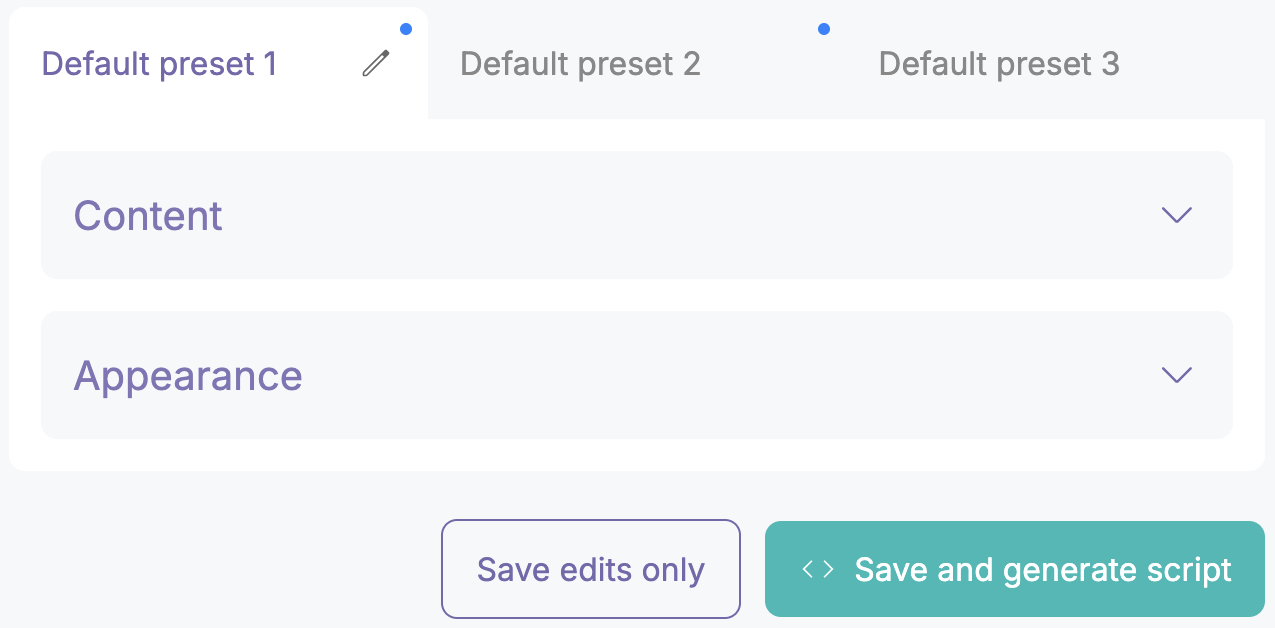
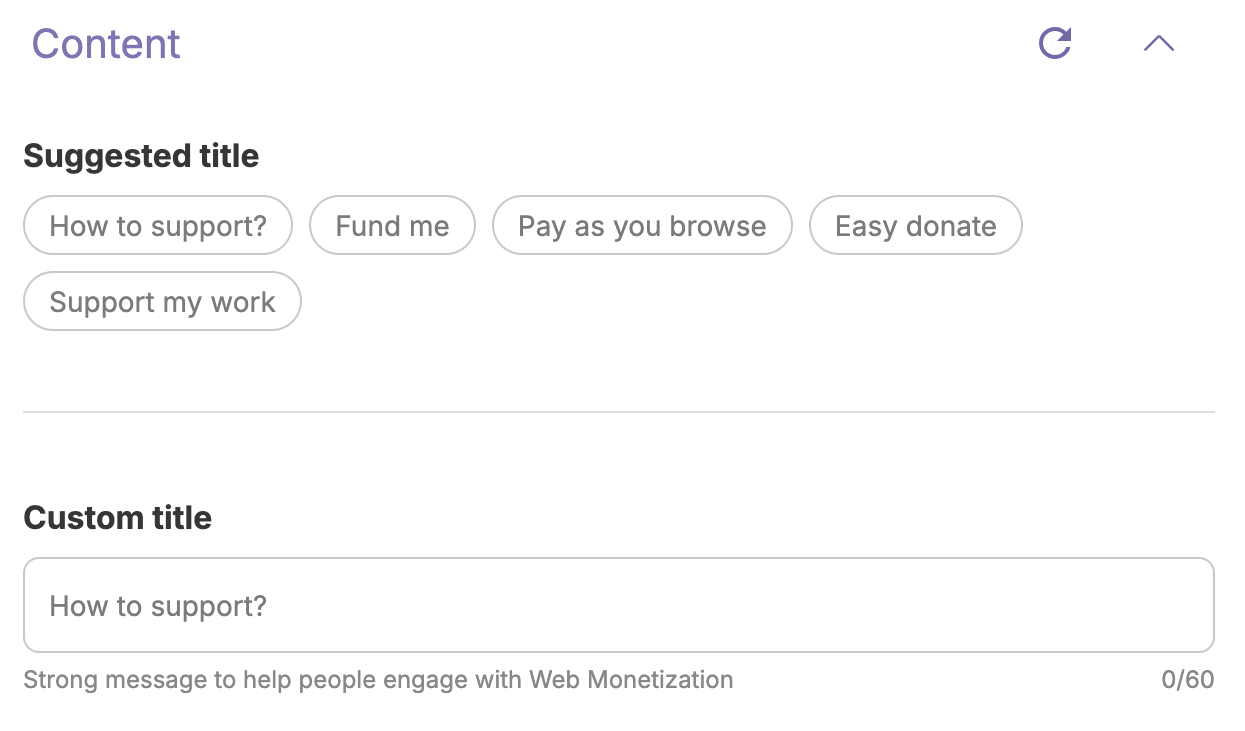
- Expand the Content section. Enter a title for the banner or choose from the suggested options.
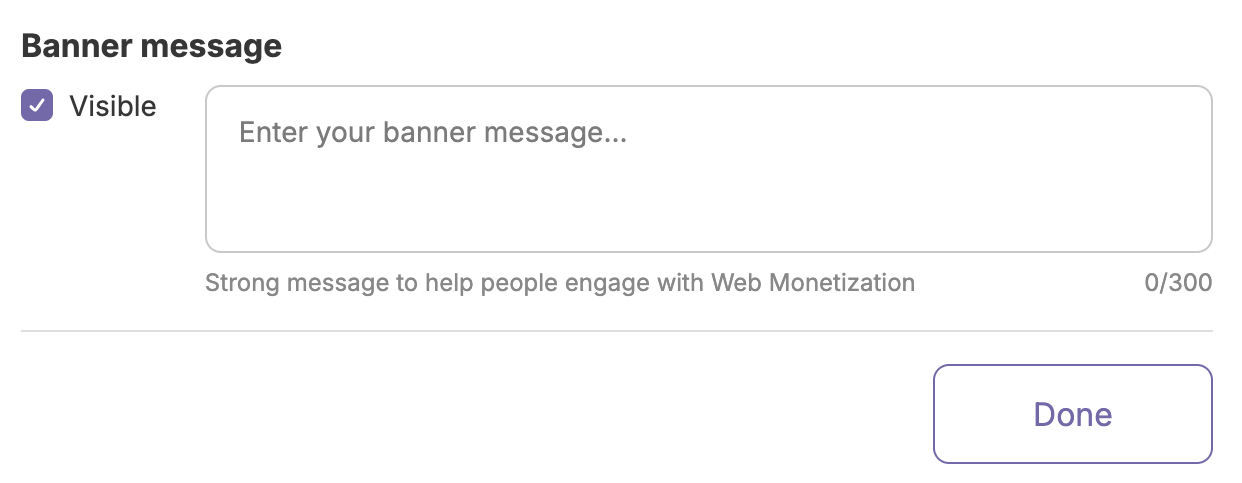
- Enter the message to show to your visitors or use the default text. We suggest changing the message so that it’s tailored specifically to your audience.
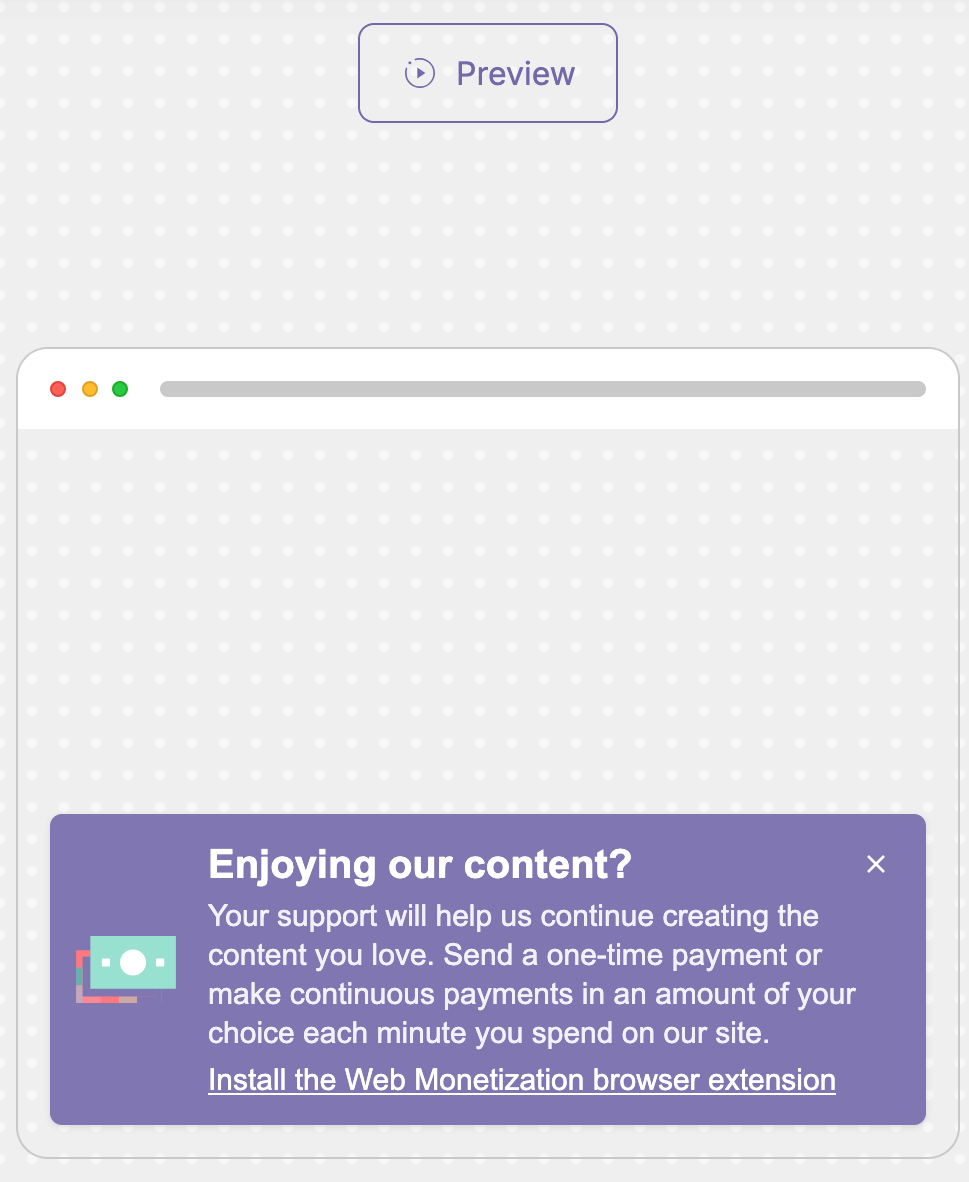
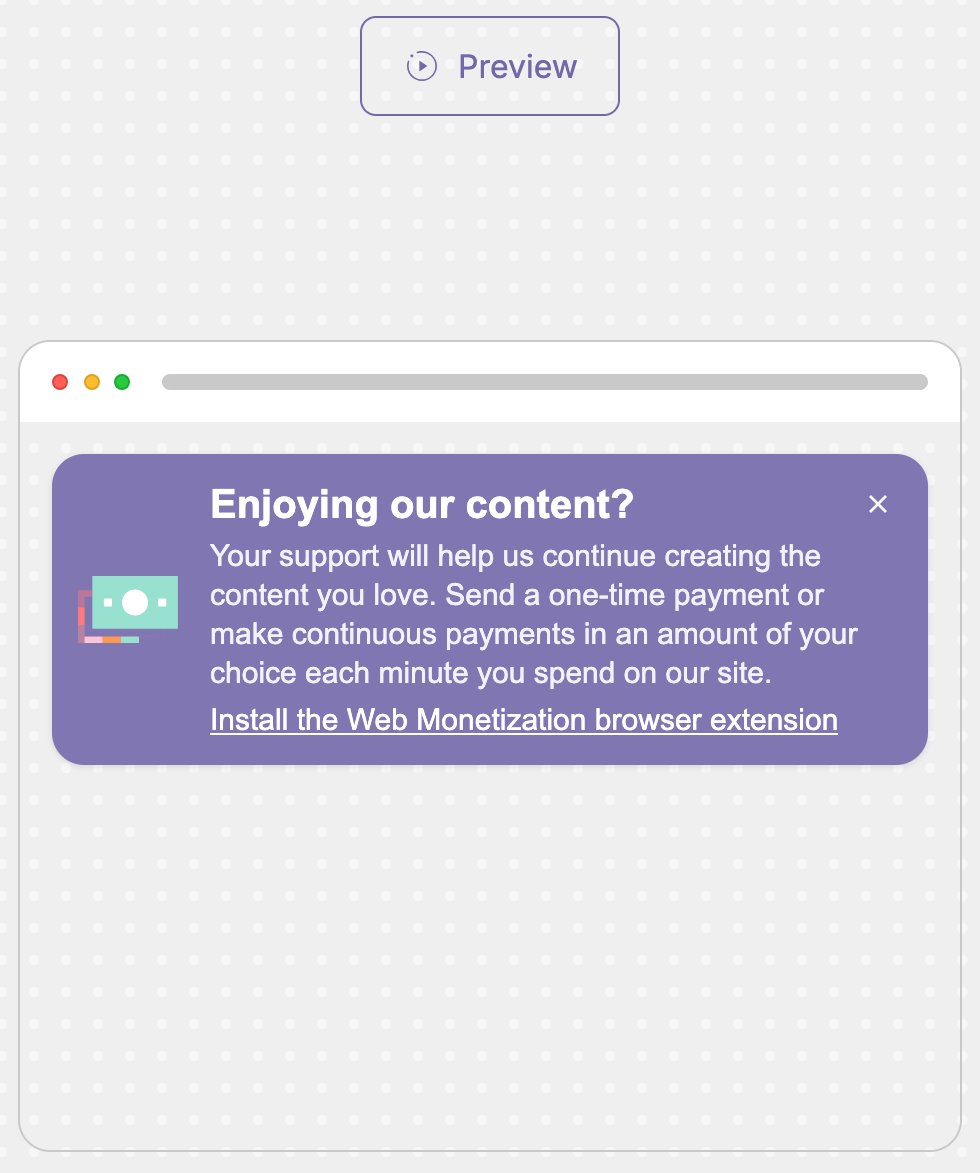
- Review your changes in the preview panel.
- Click Done to collapse the Content section.
Change the banner’s appearance
Section titled “Change the banner’s appearance”- Select the font and font size to use in the banner.
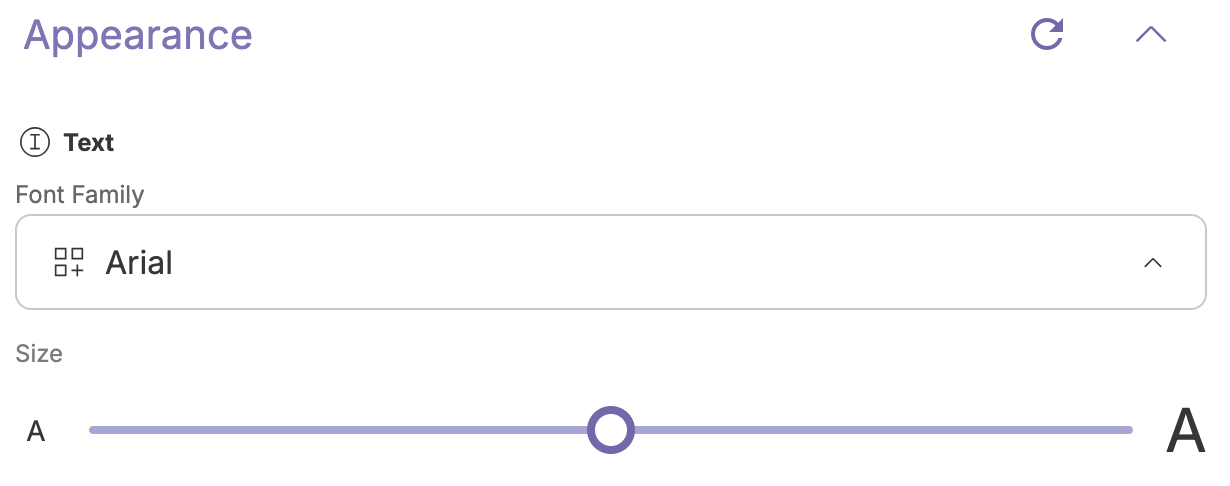
- Select the background and text colors to use.
 Click the paint can icon to enter a hex value or use the color picker.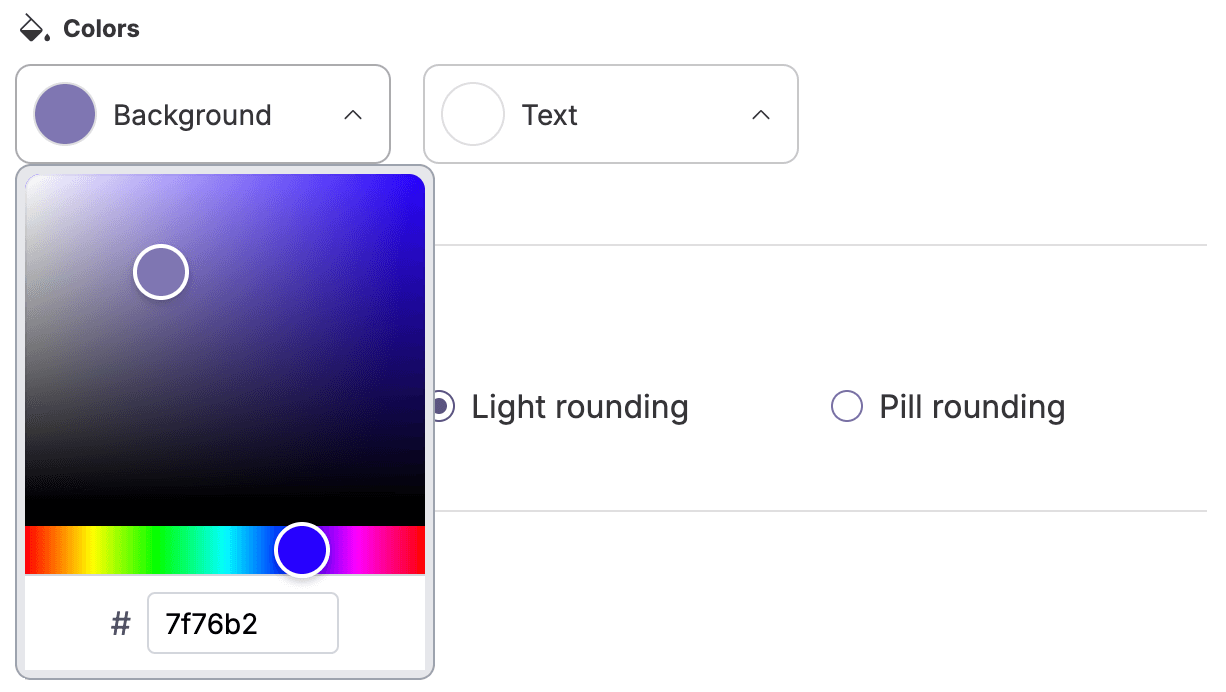
- Select the banner’s corner radius and position.
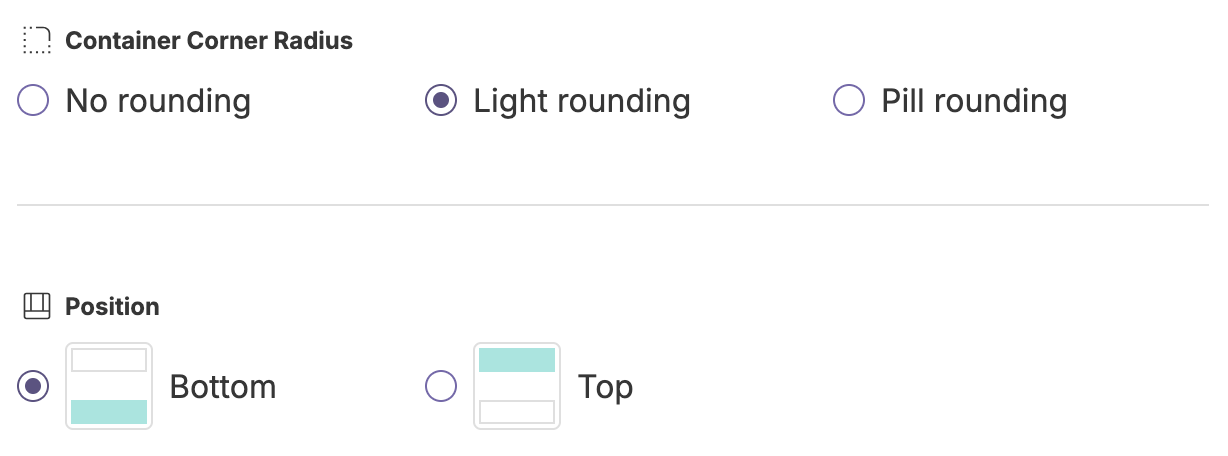
- Select whether the banner should slide or fade-in to view. You can also turn off animation.
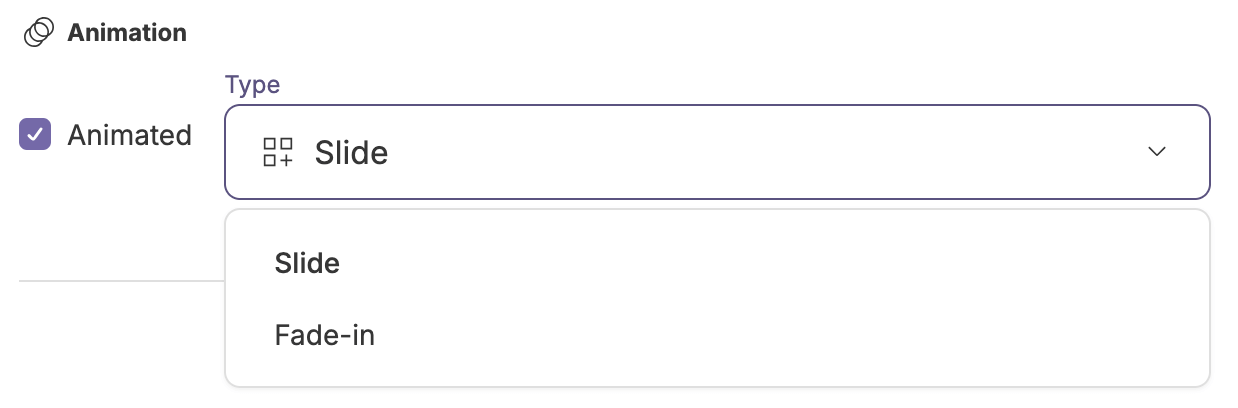
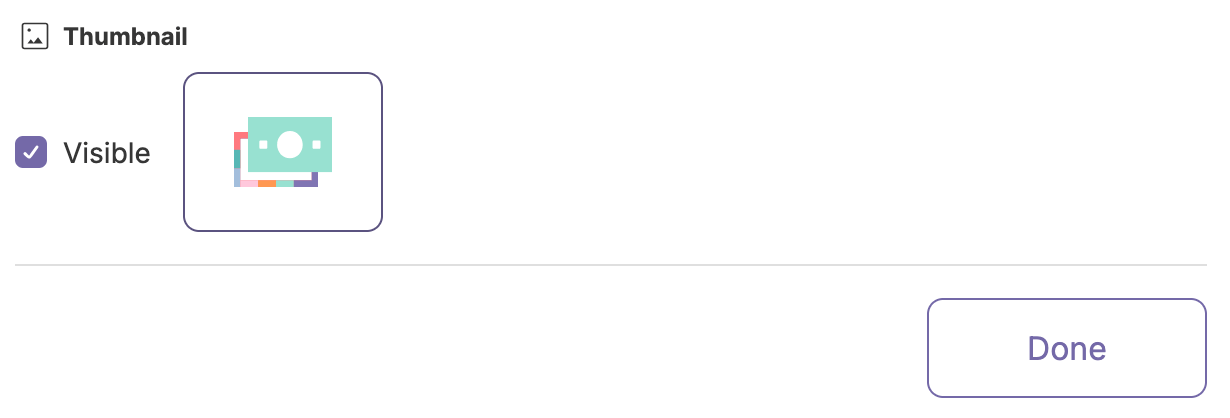
- Select whether to show the Web Monetization thumbnail in your banner.
- Review your changes in the preview panel. Click Preview to try out your selected animation.
Generate your script
Section titled “Generate your script”- Click Save and generate script.
 A wallet confirmation prompt appears.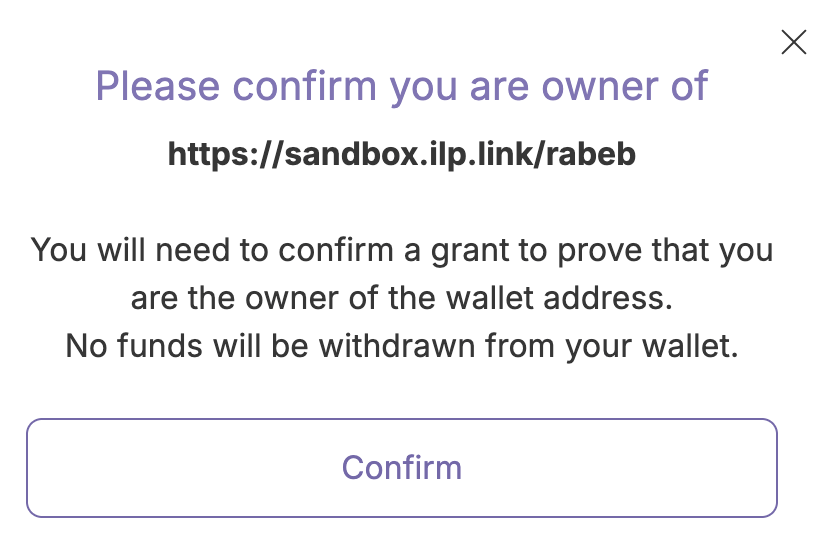
- Click Confirm. You’re directed to your wallet provider to sign in and confirm your ownership of the wallet address. After confirmation, you’ll return to the Banner tool page.
- Copy the script that appears in the overlaid screen.
Example script <scriptid="wmt-banner-init-script"type="module"src="https://tools-cdn.webmonetization.org/banner.js"data-wallet-address="https://walletprovider.com/MyWallet"data-tag="version1"></script> - Add the script to your site.
- Go to your site and check that the banner appears correctly. If you have the Web Monetization extension installed, you might need to disable the extension for the banner to appear.
Change an existing banner configuration
Section titled “Change an existing banner configuration”- Enter your wallet address.
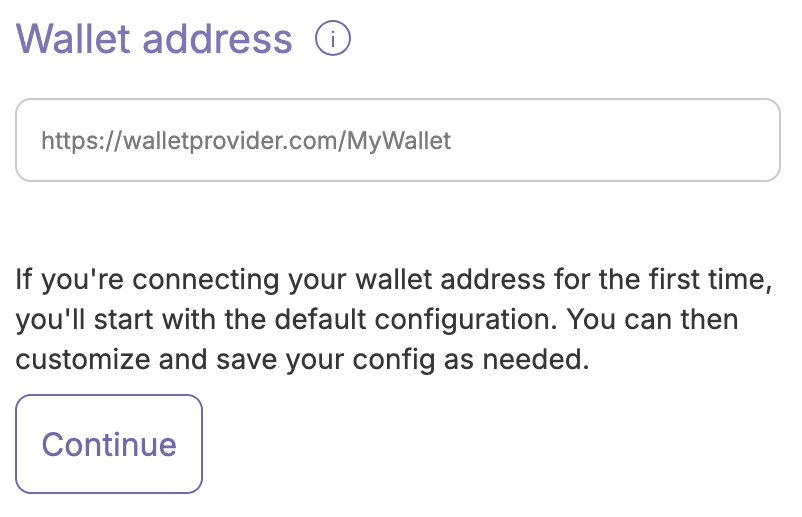
- Click Continue. If the confirmation prompt appears, you must first confirm your ownership of the wallet address.
- Make your changes, then click Save edits only. Your script remains the same. There’s no need to update your site’s code.
- Refresh a page on your site that uses the configuration’s script to verify your changes are live.
Content Security Policy (CSP) requirements
Section titled “Content Security Policy (CSP) requirements”If your website uses Content Security Policy headers, you must add the following directives to allow the publisher tools embed script to work:
| Directive | Value | Description |
|---|---|---|
script-src | https://tools-cdn.webmonetization.org | Allows loading interactive tool script from the CDN |
connect-src | https://tools-api.webmonetization.org | Allows fetching configuration data from the API |
img-src | data: https://tools-cdn.webmonetization.org | Allows loading logos/thumbnails and inline SVG icons |
style-src | https://tools-cdn.webmonetization.org | Allows loading CSS files and dynamic theme styling (custom colors/fonts) |
font-src | https://tools-cdn.webmonetization.org | Allows loading custom web fonts |
Banner tool