
Offerwall tool
Last reviewed: Sep 14, 2026
Google’s Offerwall is a monetization tool that gives publishers more ways to earn beyond traditional advertisements. For example, a visitor could choose between watching a short ad or providing their email address before accessing content.
This page describes how to use the Offerwall tool and Google Ad Manager to add Web Monetization to your Offerwall.
Before you begin
Section titled “Before you begin”- You must have a Google Ad Manager account.
- You can only add one custom user choice to a Google Offerwall.
Set up the custom choice screen
Section titled “Set up the custom choice screen”Change the custom choice screen’s appearance
Section titled “Change the custom choice screen’s appearance”- Enter your wallet address.
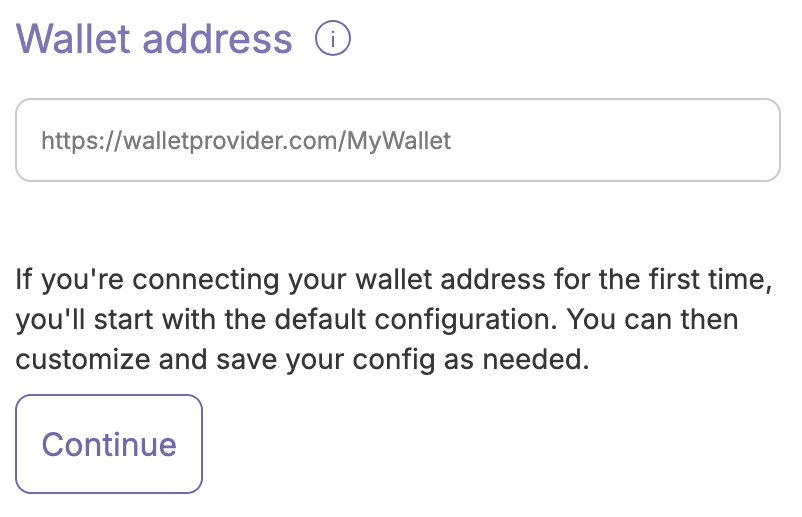
- Click Continue.
- Change the label of a configuration by selecting the pencil icon and typing over the default.
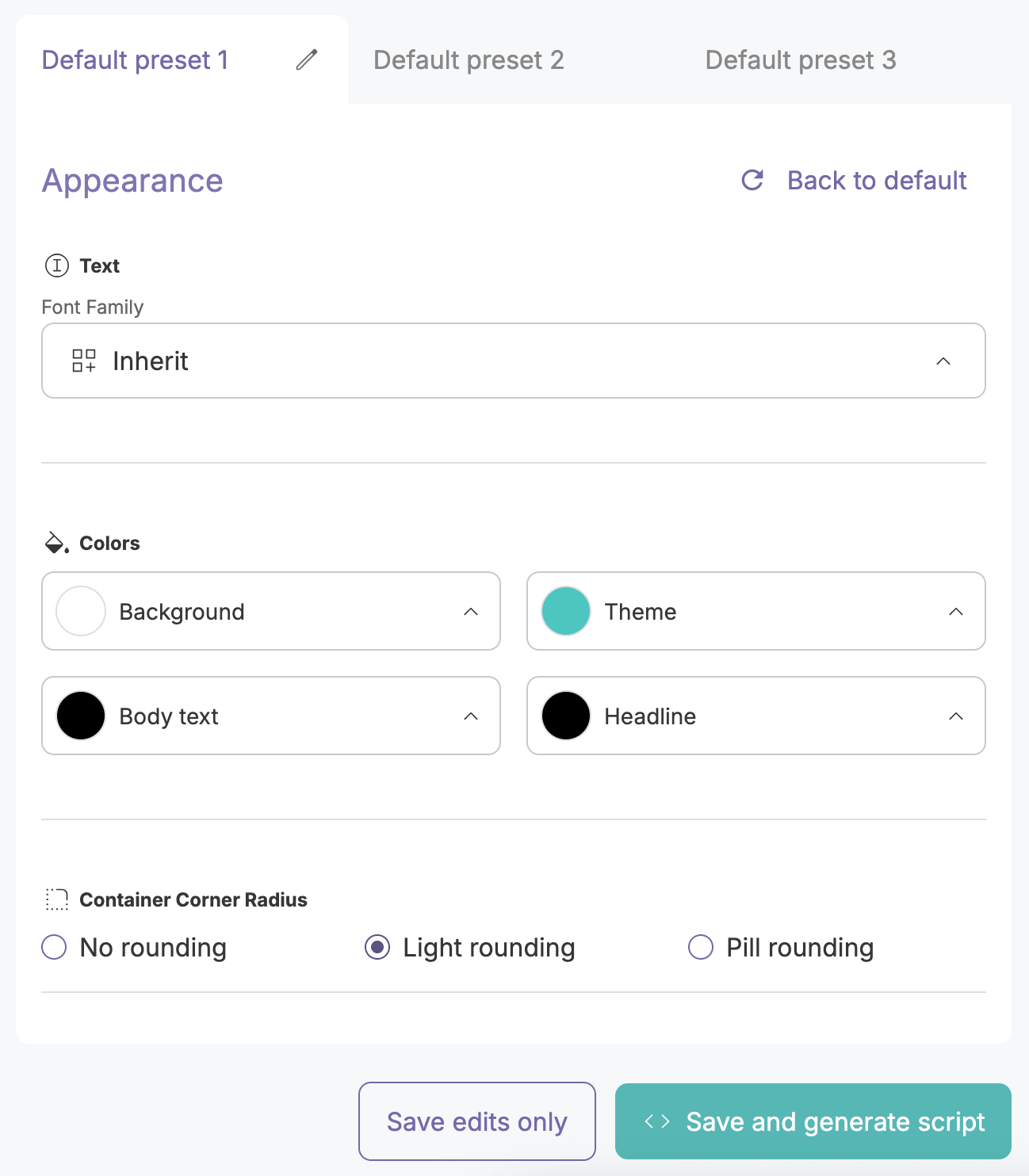
- Select the font to use on the screen.

- Select the colors to use for the background, body text, theme, and headline text.
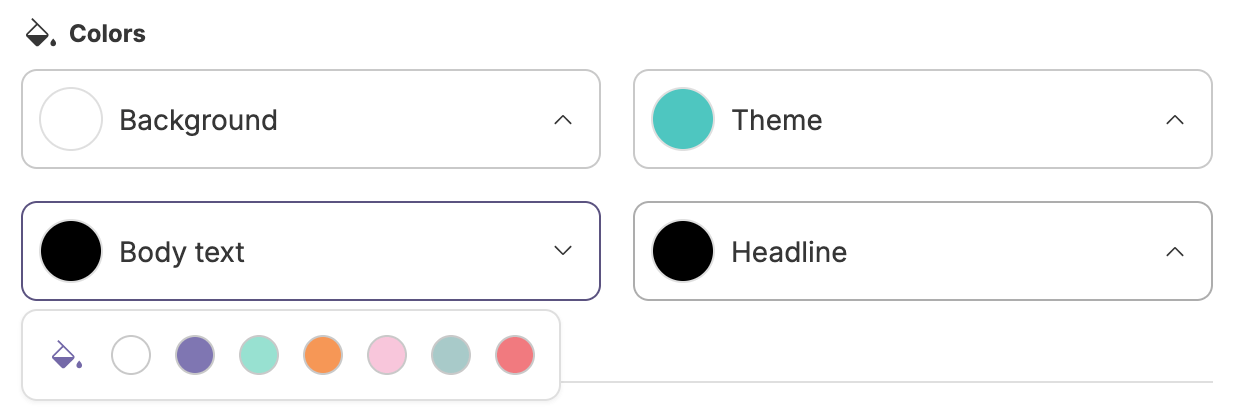 Click the paint can icon to enter a hex value or use the color picker.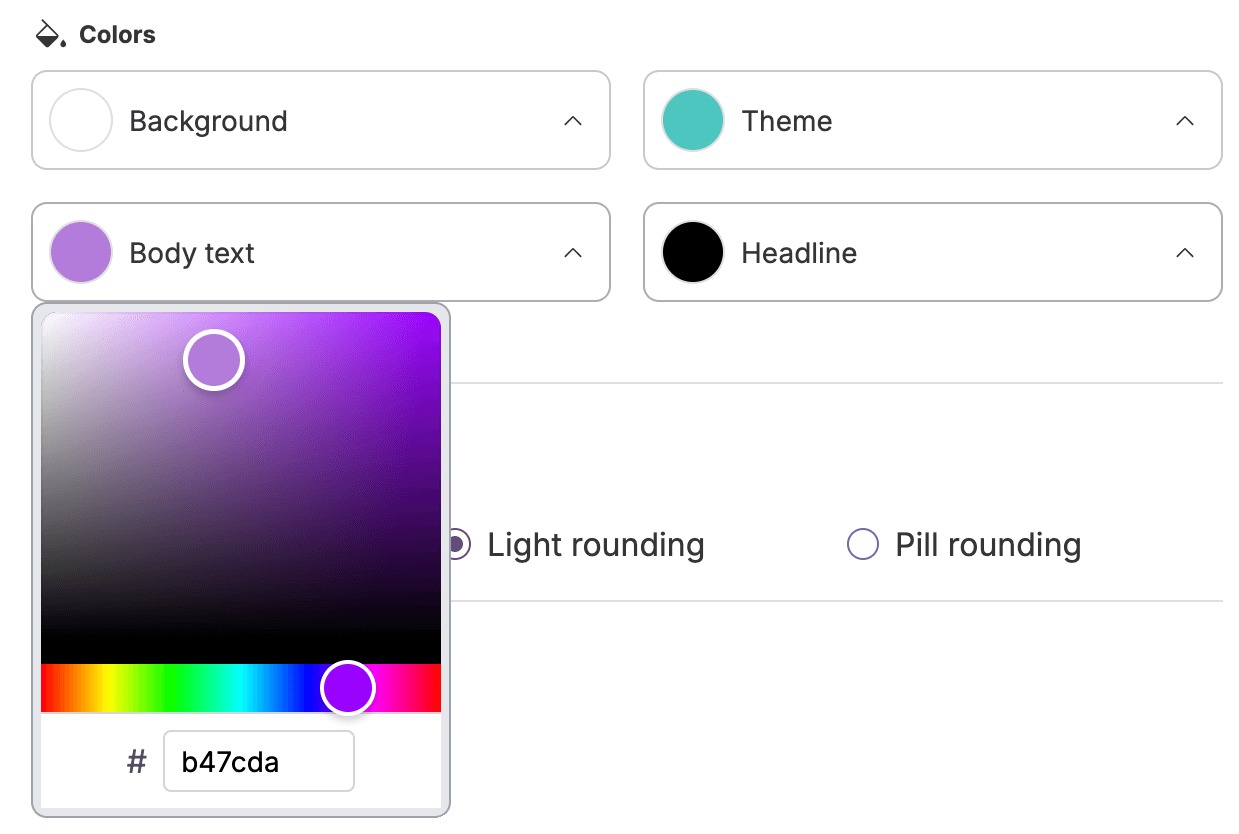
- Select the screen’s corner radius.

- Review your changes in the preview panel. The preview shows what a visitor will see if they don’t have the Web Monetization extension.
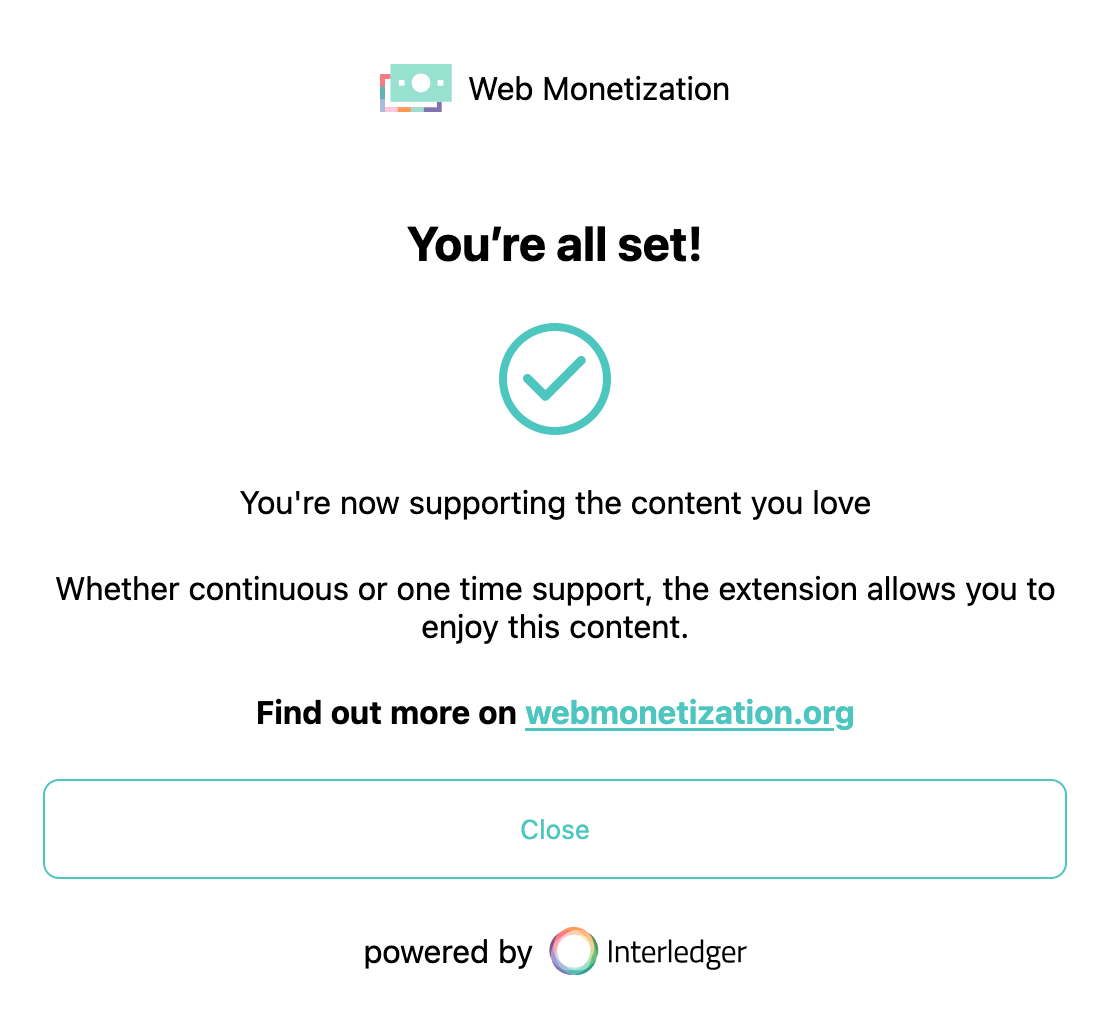
Visitor without extension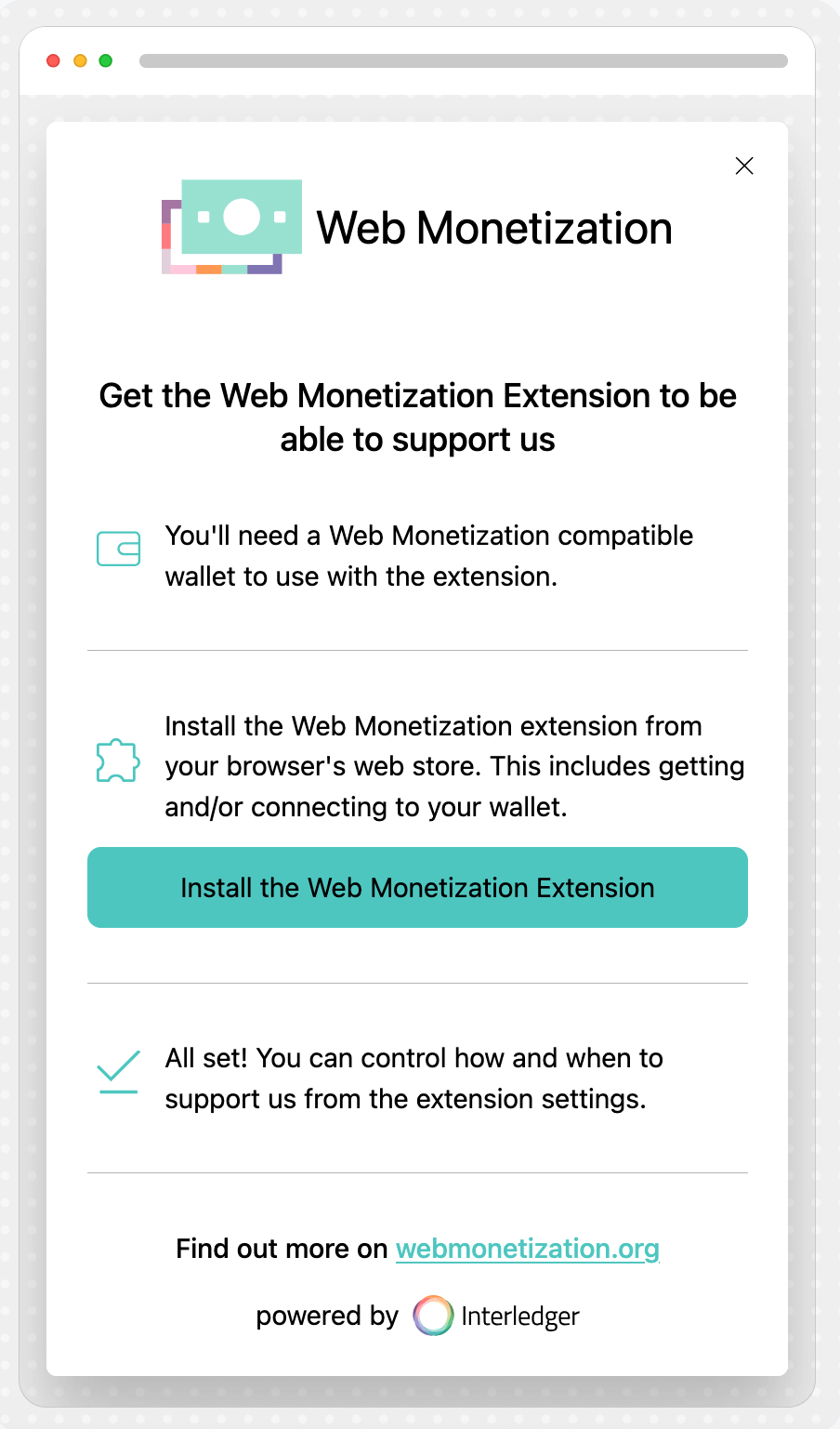 Different screens will appear if the visitor has the extension enabled or disabled. The appearance settings you selected above also apply to these screens.
Visitor with extension enabled
Visitor with extension disabled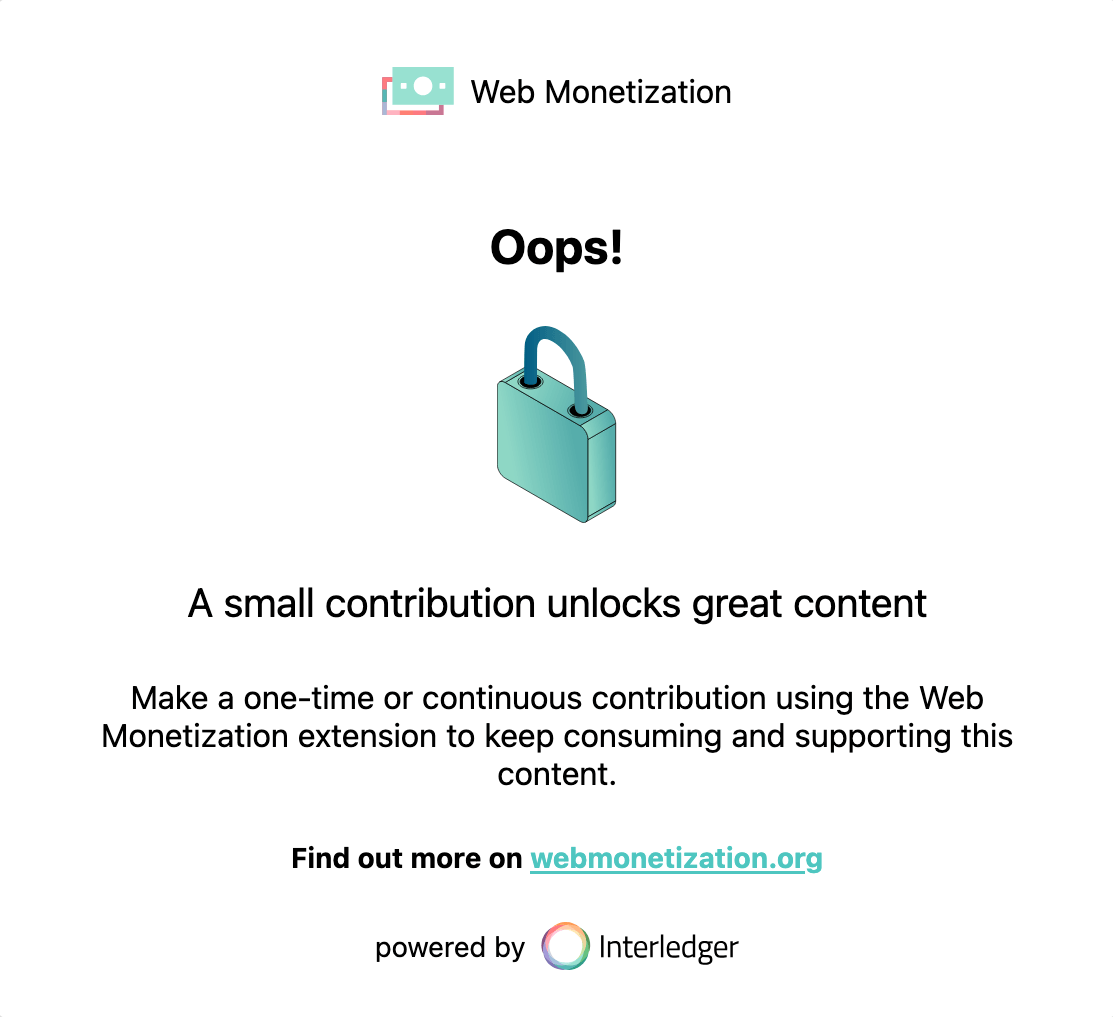
Generate your script
Section titled “Generate your script”- Click Save and generate script.
 A wallet confirmation prompt appears.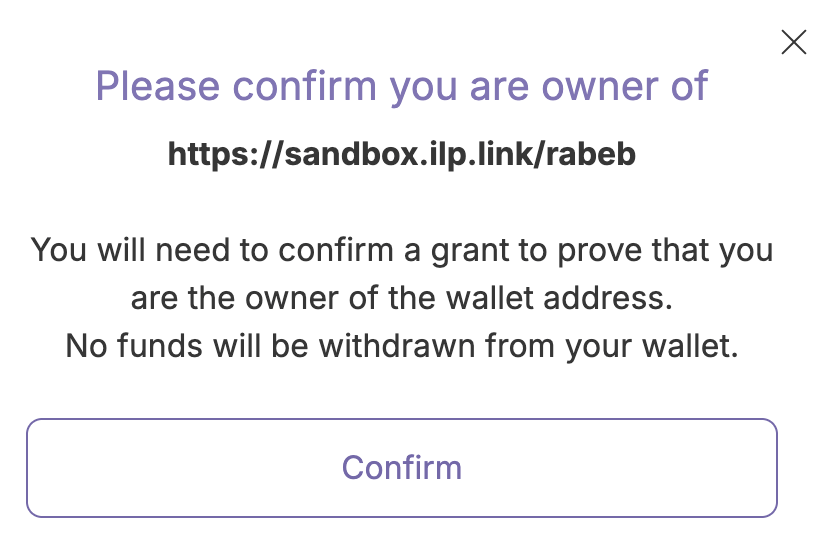
- Click Confirm. You’re directed to your wallet provider to sign in and confirm your ownership of the wallet address. After confirmation, you’ll return to the Offerwall tool page.
- Copy the script that appears in the overlaid screen.
Example script <scriptid="wmt-offerwall-init-script"type="module"src="https://tools-cdn.webmonetization.org/offerwall.js"data-wallet-address="https://walletprovider.com/MyWallet"data-tag="version1"></script> - Add the script to the
<body>of each page you want to offer Web Monetization.
Add Web Monetization as a custom Offerwall choice
Section titled “Add Web Monetization as a custom Offerwall choice”You must sign in to your Google Ad Manager account to complete these steps.
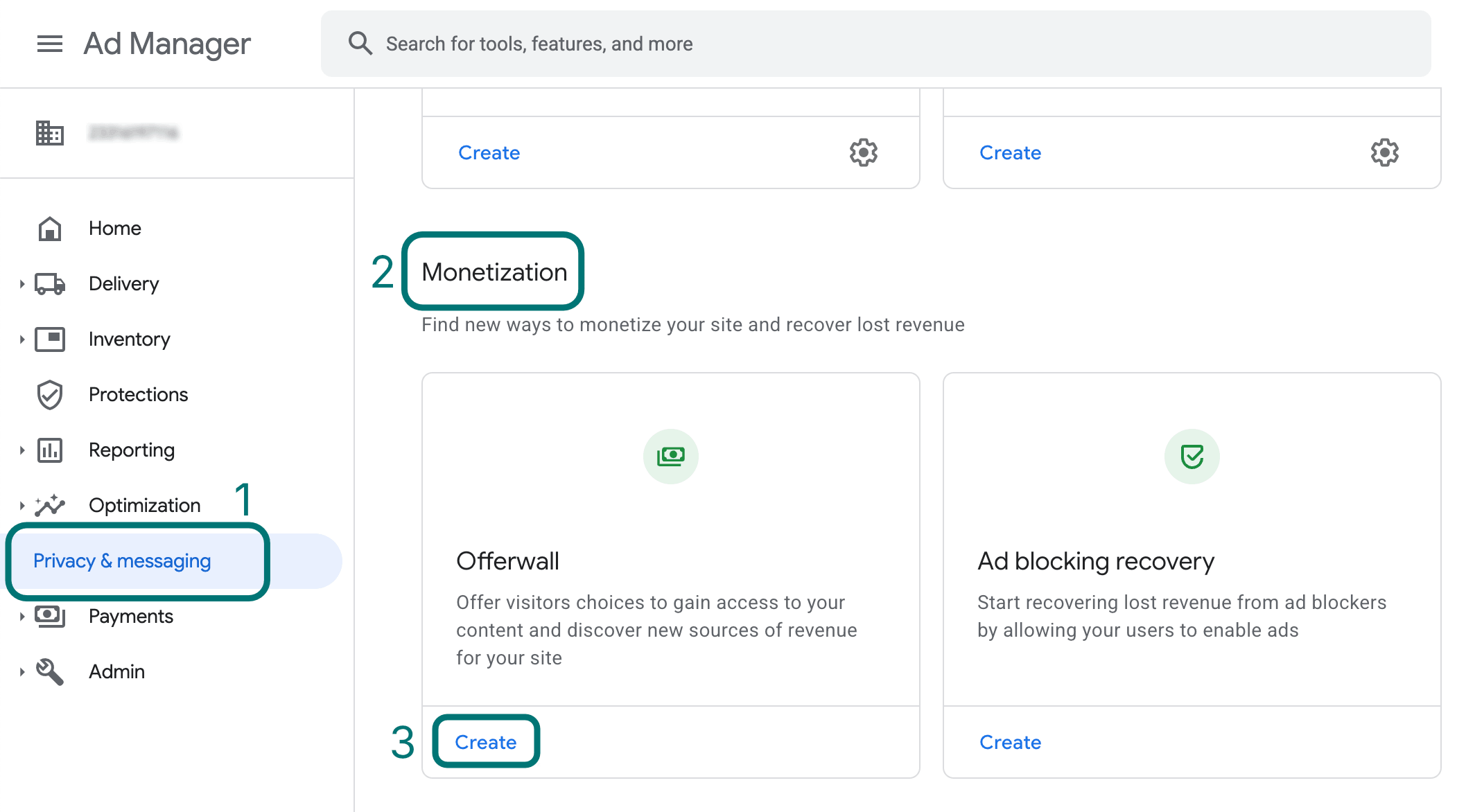
- Select the Privacy & Messaging tab.
- Find the Monetization section.
- Find the Offerwall message type card and click Create.
- Under Your sites, click Select sites.
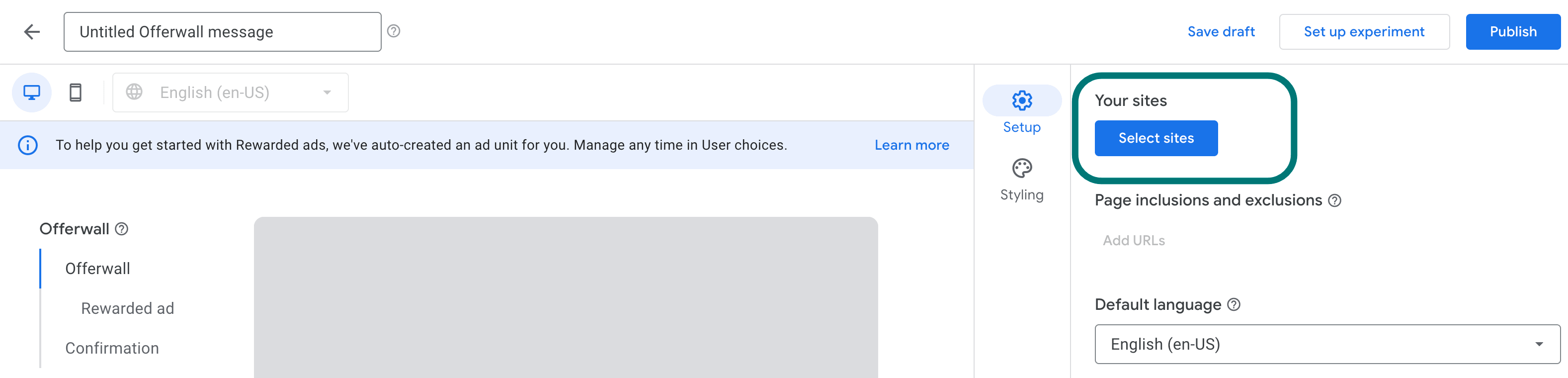
- Choose the sites where you want your Offerwall to appear, then click Confirm.
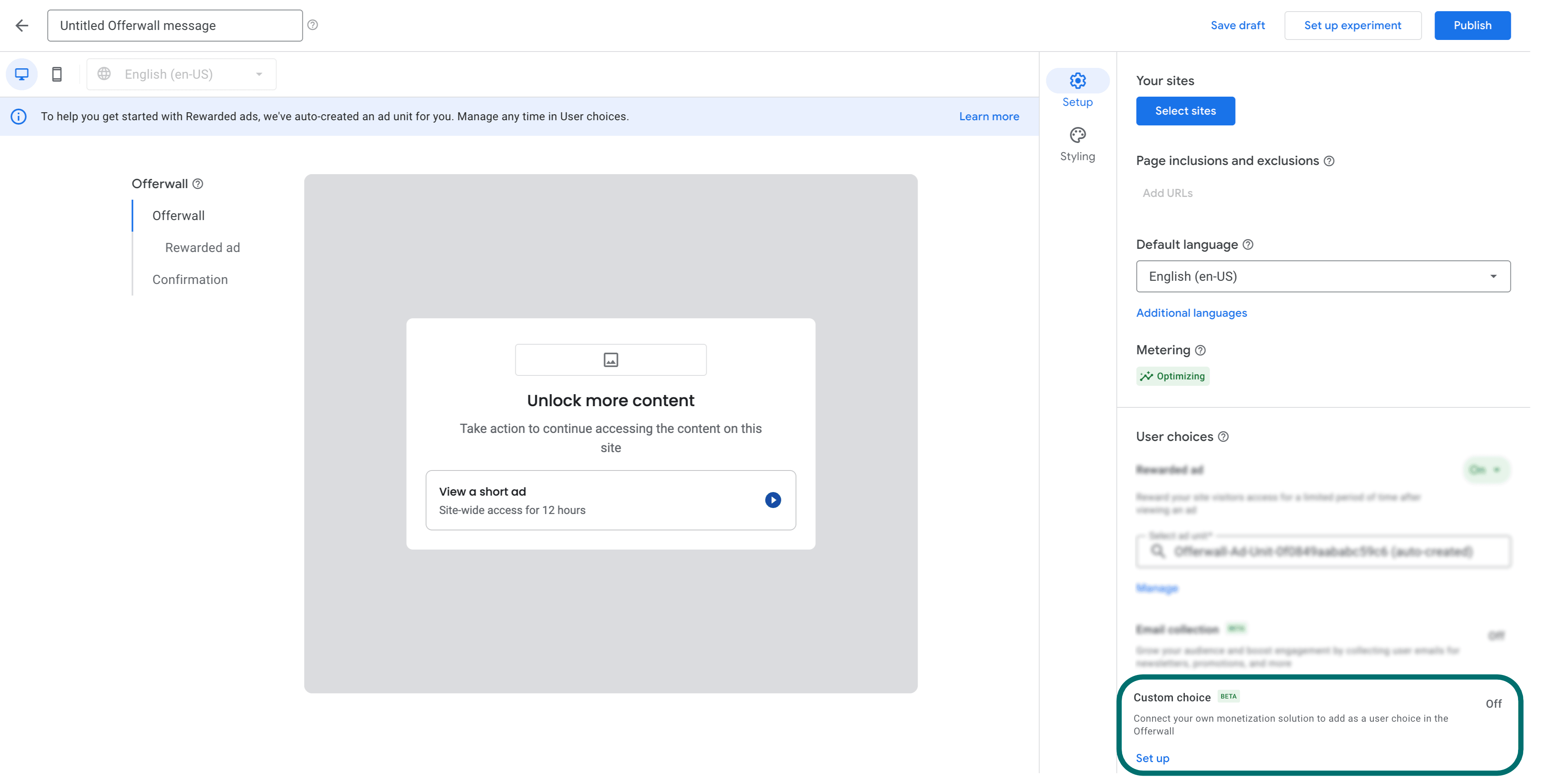
- Under User choices, locate the Custom choice option and click Set up.
- Select the confirmation box that states, I confirm that I have implemented the Offerwall Custom Choice API, then click Next.
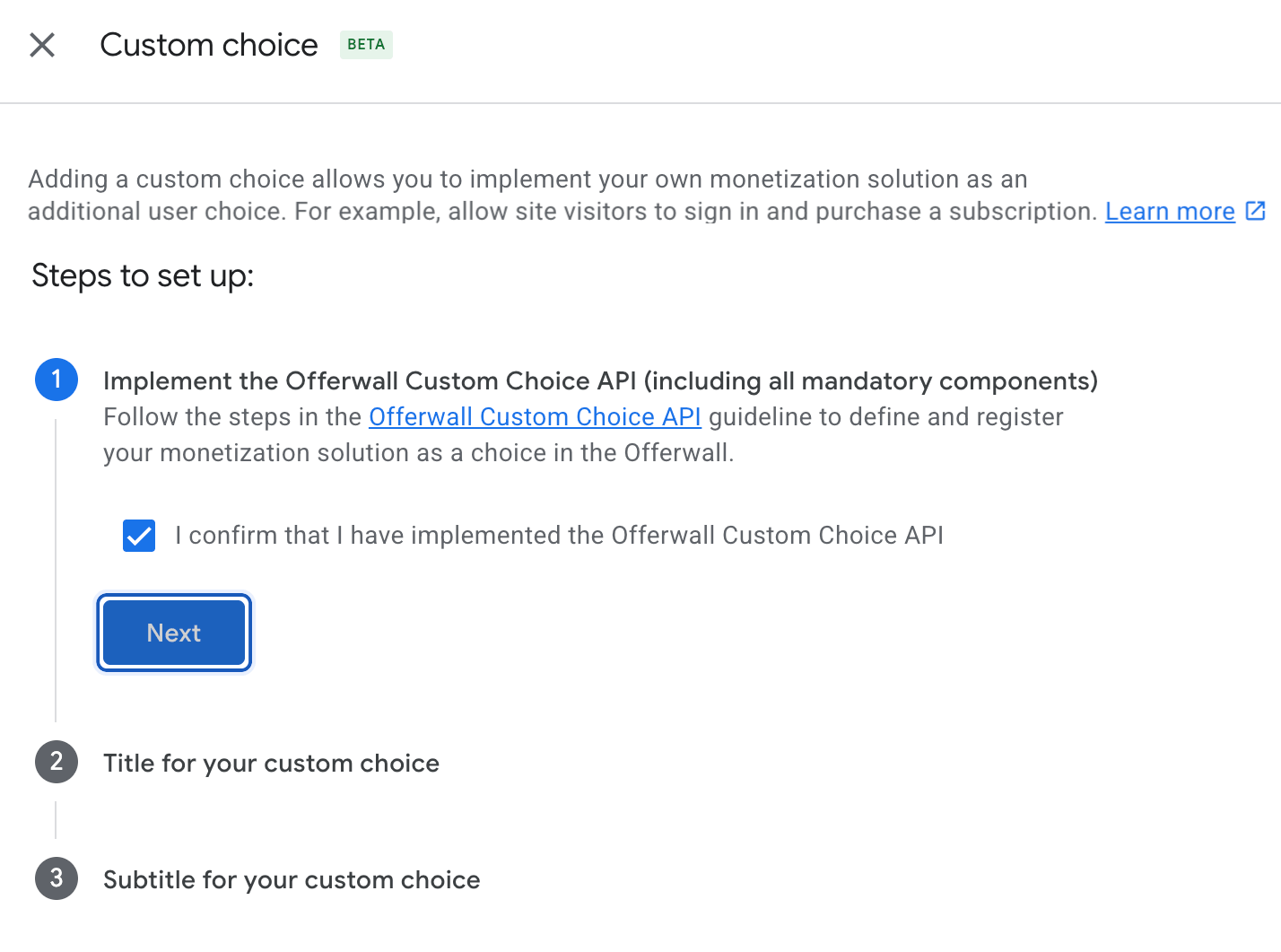
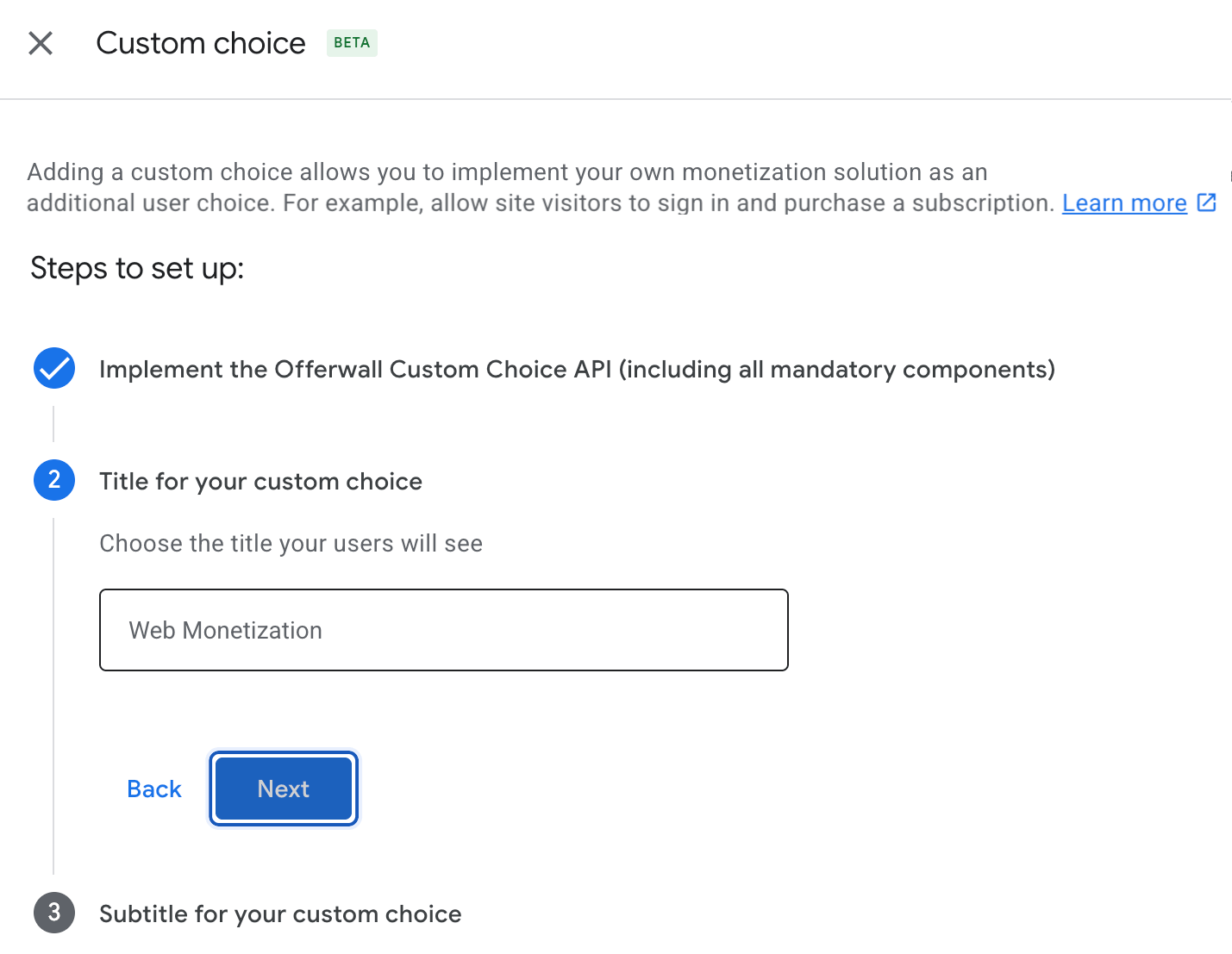
- Enter a title for your custom choice and click Next. We recommend using Web Monetization.
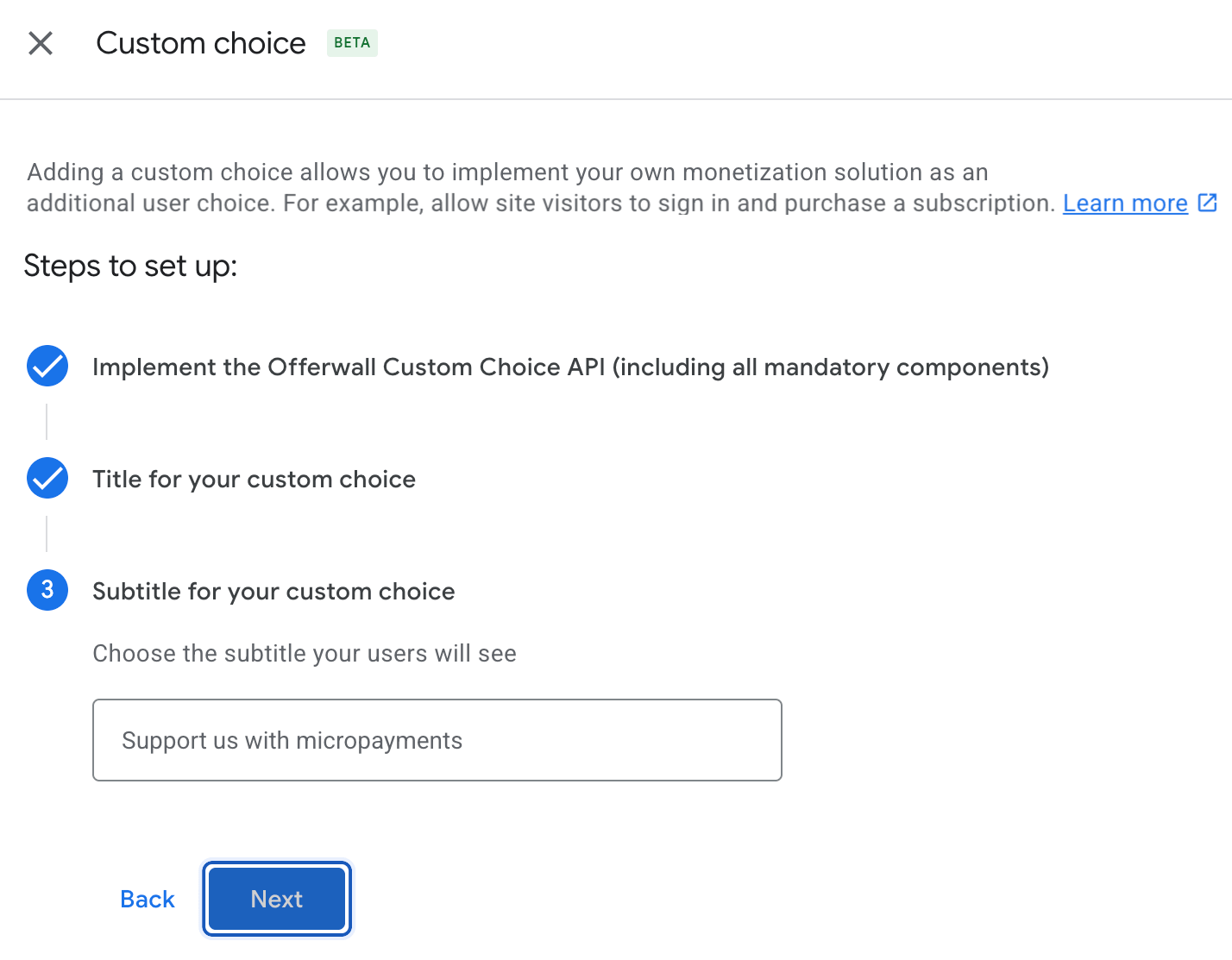
- Enter a subtitle for your custom choice and click Next. We recommend using Support us with micropayments.
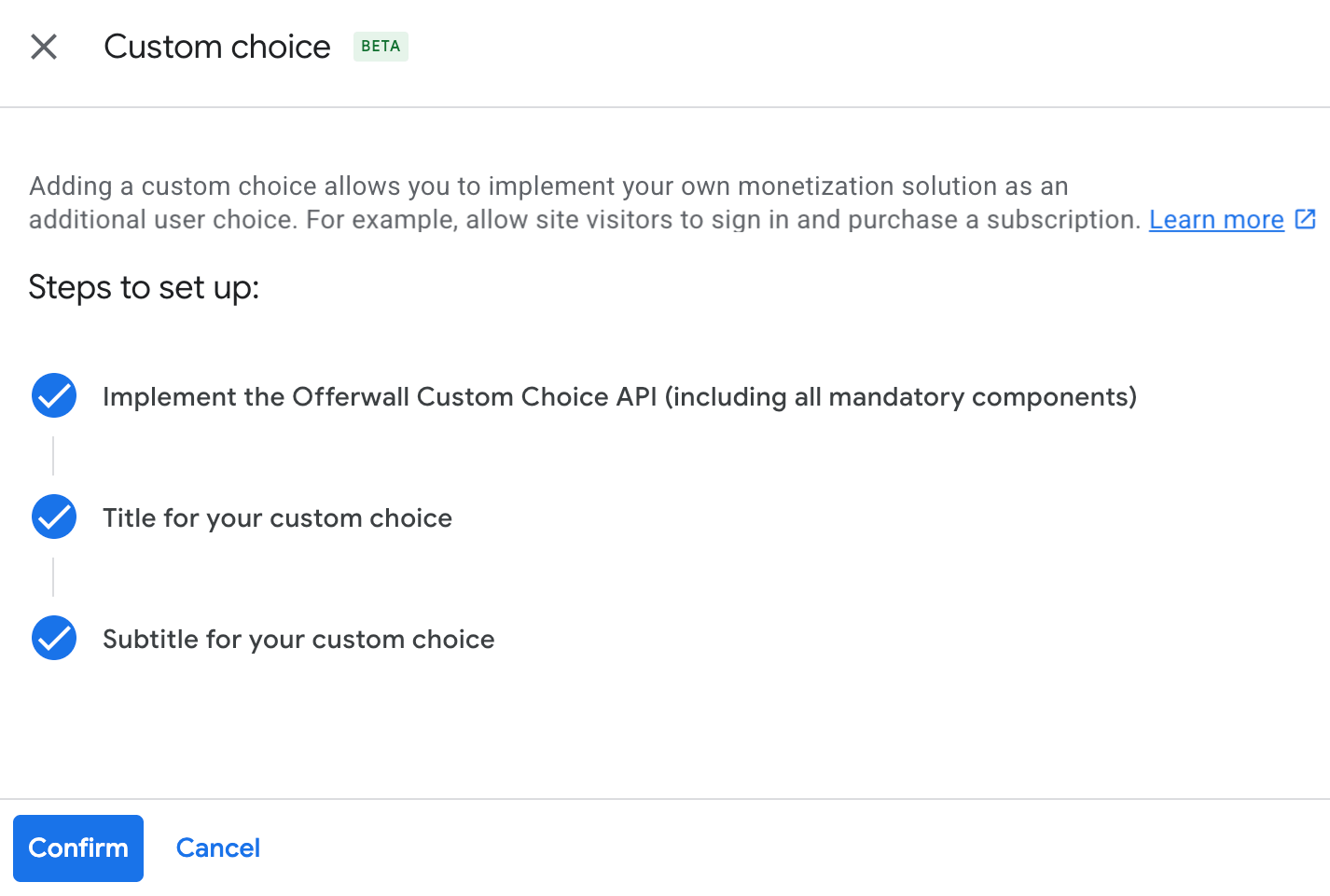
- Click Confirm.
The Offerwall Message screen appears. Your Web Monetization choice displays in the preview area.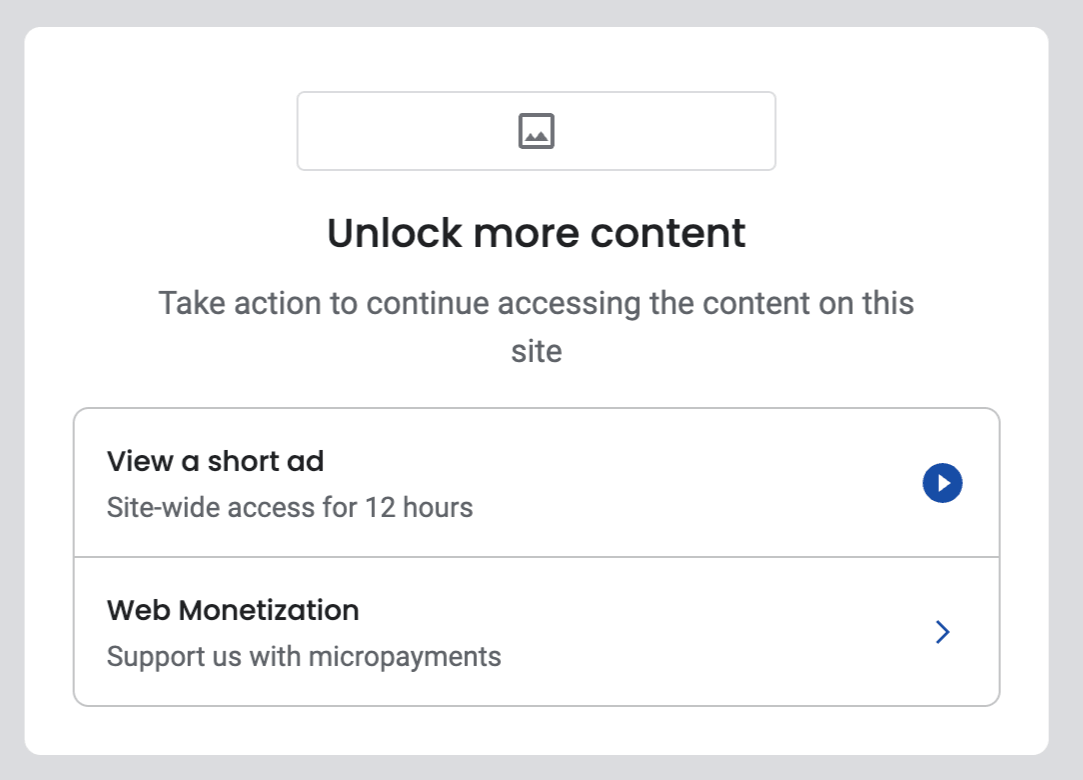
- If you’re not ready to publish this version of your Offerwall, click Save draft. Otherwise, click Publish.
- Go to your site and check that the Offerwall appears correctly. If your Offerwall doesn’t appear at all, check your implementation of the Offerwall Custom Choice API.
Change an existing appearance configuration
Section titled “Change an existing appearance configuration”- Go to the Offerwall tool, enter your wallet address, then click Continue.
- Make your changes, then click Save edits only. Your script remains the same. There’s no need to update your site’s code.
- Refresh a page on your site that uses the configuration’s script to verify your changes are live.
Offerwall tool